
Free Fortnite optimizer for Windows 10 & 11Get the ultimateCompetitiveAdvantage
Maximize your FPS, reduce latency and dominate the battlefield. The free Fortnite optimizer from ToX Tweaks, with its source code public on GitHub.
Doesn't modify game files. Optimizes game-specific system settings to improve performance.
- Downloads
- 27,885
- Latest release
- v2.0
- Installer
- 26.3 MB
- Price
- Free
What it optimizes
Performance
Increase your frames per second.
Network
Optimize your connection and ping.
Latency
Reduce input lag and system delay.
System
Optimize Windows for maximum power.
Tweaks for FPS and input delay
There’s no mystery “boost” button. Every tweak has its own switch and a plain description of what it changes, the same list you see here.
Get all tweaksHigh CPU priority
Boosts Fortnite's CPU priority, giving it more processing power over background tasks.
High GPU priority
Forces Fortnite to use the high-performance GPU priority, improving FPS and reducing latency.
QoS optimization
Optimizes Fortnite's network traffic by prioritizing UDP packets, improving network stability.
Disable fullscreen optimization
Disables fullscreen optimizations for Fortnite, reducing input lag and improving performance.
Disable Fortnite mitigations
Disables unnecessary Windows security mitigations, slightly improving performance and input delay.
Inside the app
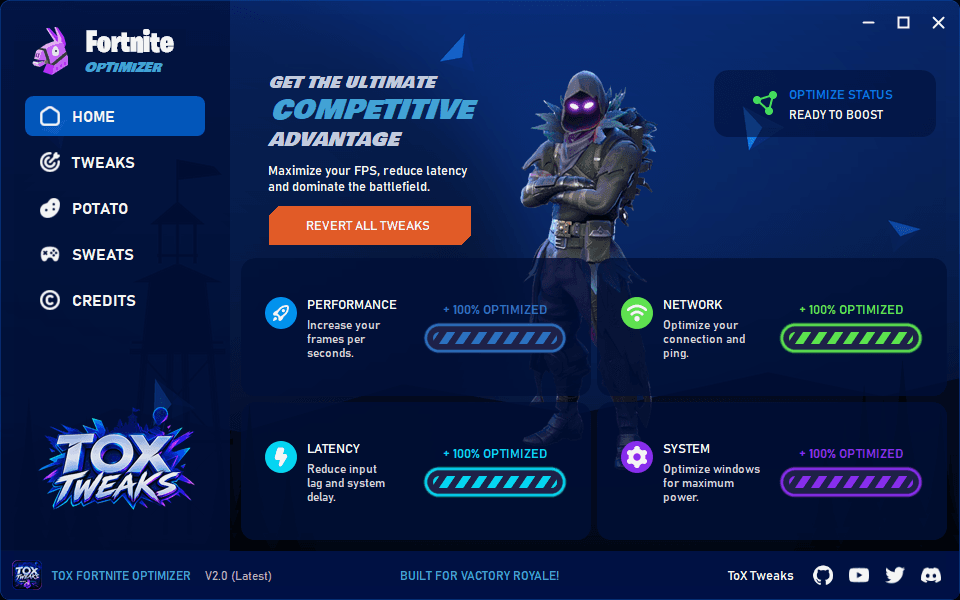
Optimize status at a glance
See where performance, network, latency and system stand, optimize everything in one click, and undo it just as fast.
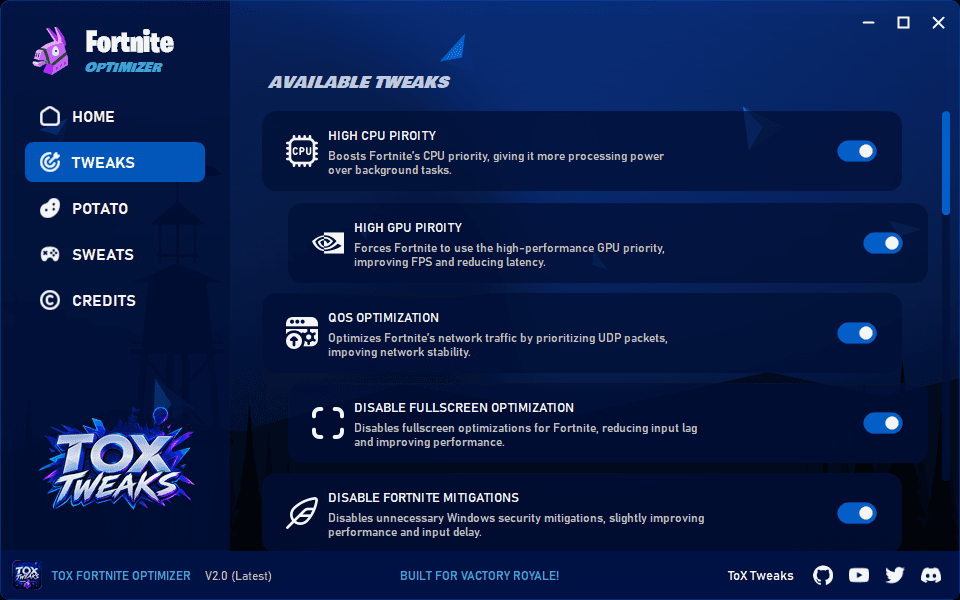
Every tweak, explained
Toggle each Fortnite tweak individually. Every switch says exactly what it changes, so nothing happens behind your back.
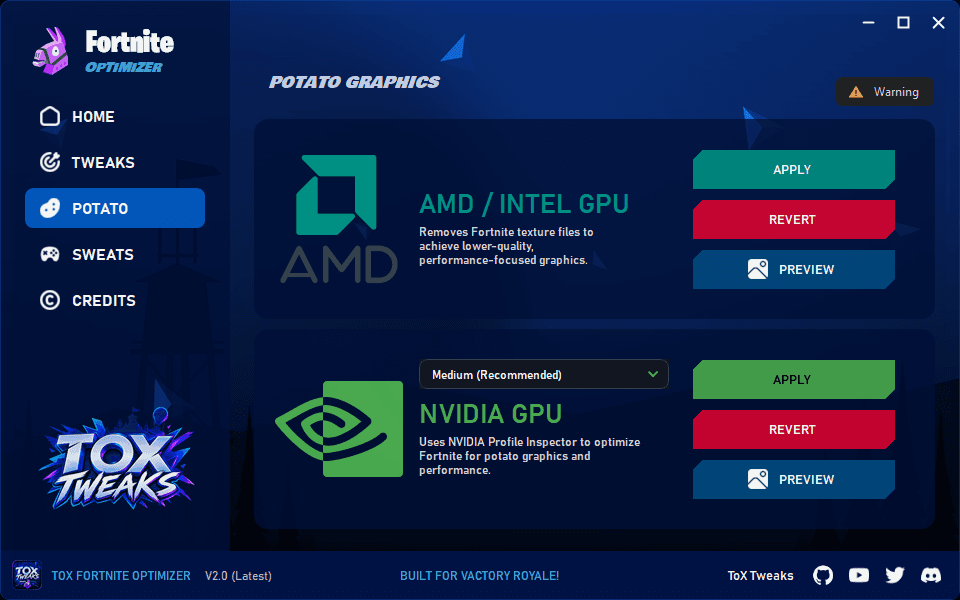
Potato graphics for low-end PCs
Separate profiles for AMD / Intel and NVIDIA graphics. Preview the look before you apply it, and revert any time.
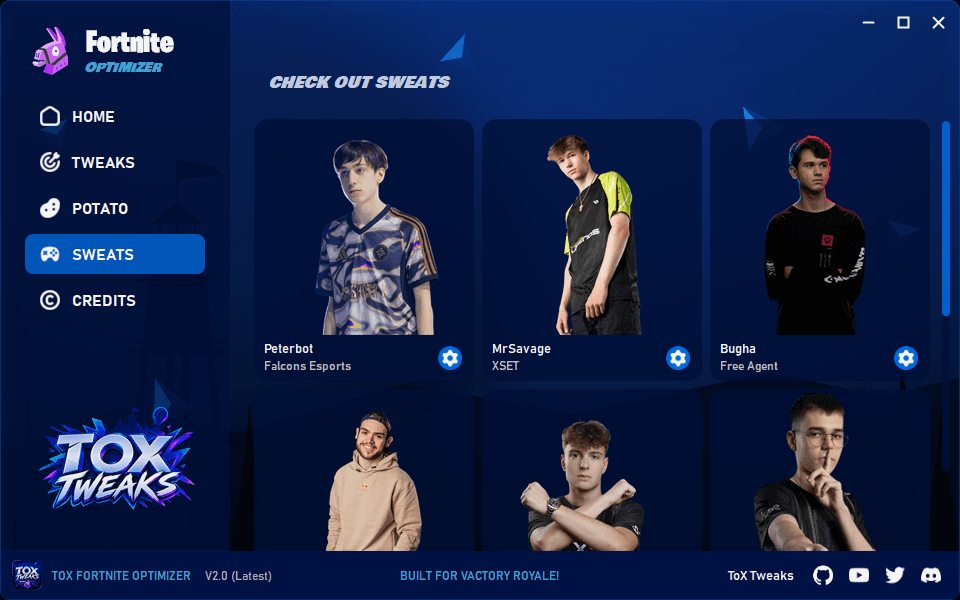
Pro player settings
Browse the settings used by pros like Peterbot, MrSavage, and Bugha and copy their setup.
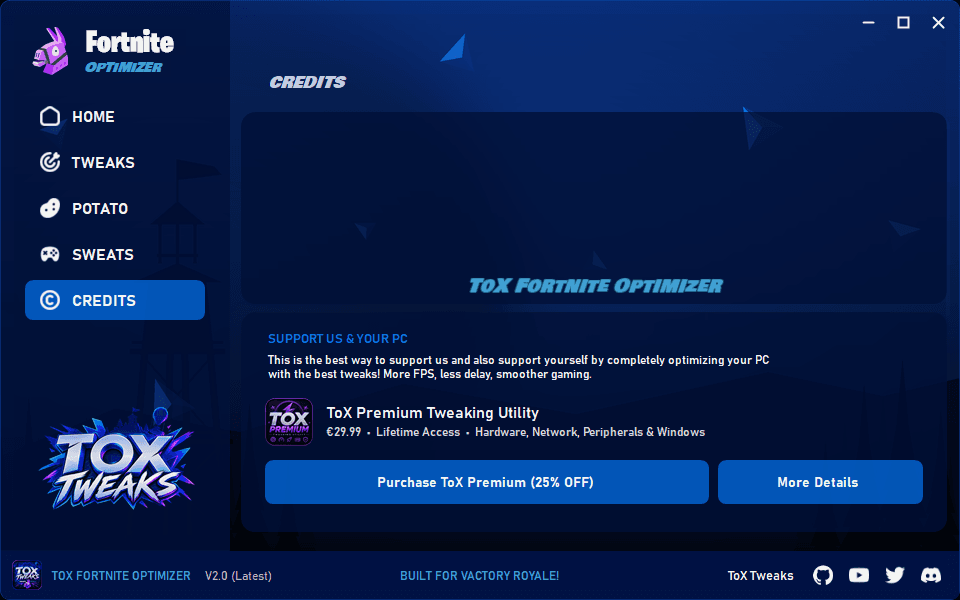
Free, with an optional upgrade
The optimizer is free. ToX Premium is there if you want to tune hardware, network, peripherals, and Windows further.
What players say
 Via Discord
+rep close to zero input delay but its impossible to notice from 50 ping to 28 without using every tweak and from 170fps to 240fps i curiuous how much of change the premium one work
Install in under two minutes
Download for Windows
The installer comes straight from GitHub Releases, so you can check the source code and release history before you run it.
ToX Fortnite Optimizer
Released Nov 11, 2026 • 26.3 MB • 27,885 downloads • Windows 10 / 11
- 1Run the installer as administrator
- 2Turn on the tweaks you want
- 3Restart Fortnite and play
FAQ
How do I get more FPS in Fortnite?
Install the optimizer, turn on the tweaks in the Tweaks tab, and restart Fortnite. Most of the gain comes from giving Fortnite higher CPU and GPU priority. If your PC struggles to hold 60 FPS, try Potato graphics as well.
How do I reduce input delay in Fortnite?
Turn on Disable fullscreen optimization and Disable Fortnite mitigations. Both remove Windows overhead between your mouse and keyboard and the game. QoS optimization doesn't change input delay, but it puts Fortnite's traffic first, which helps keep your ping steady.
Does it work on low-end PCs and laptops?
Yes, that's what Potato graphics is for. Pick the AMD / Intel or NVIDIA profile, preview it, and apply. One player in our Discord went from 5-10 FPS to 60-80 FPS.
Can I copy pro player settings?
Yes. The Sweats tab shows the settings Peterbot, MrSavage, Bugha and other pros use, so you can match them in your own game.
Is Fortnite Optimizer safe to use?
The tweaks change Windows settings such as process priority, GPU preference, network QoS, and fullscreen optimizations. Each one is listed with a description, the source code is public on GitHub, and Revert All Tweaks on the home screen undoes everything.
Can it get my Fortnite account banned?
The optimizer never injects into Fortnite or reads or writes game memory, which is what Easy Anti-Cheat looks for. The AMD / Intel profile in Potato graphics does remove texture files to boost FPS. If you want them back, use Revert or verify the game files in the Epic Games Launcher.
How do I undo the changes?
Press Revert All Tweaks on the home screen, or switch individual tweaks off in the Tweaks tab. Potato graphics has its own Revert button for each GPU type.
Is it really free?
Yes. Fortnite Optimizer is free with no ads or account. ToX Premium is a separate, paid utility for tuning hardware, network, peripherals, and Windows, and you never need it to use the optimizer.
Which version will I download?
The download button always gets the latest release on GitHub. The screenshots on this page show the V2 interface, which is rolling out as an update to the current release.
Which Windows versions are supported?
Windows 10 and Windows 11. Run the installer once as administrator, which is required to apply system-level tweaks.